读完这篇文章,你将在自己的 Windows 电脑上跑起一个全功能的 AI Agent,连上微信随时对话。
一、什么是 Hermes Agent
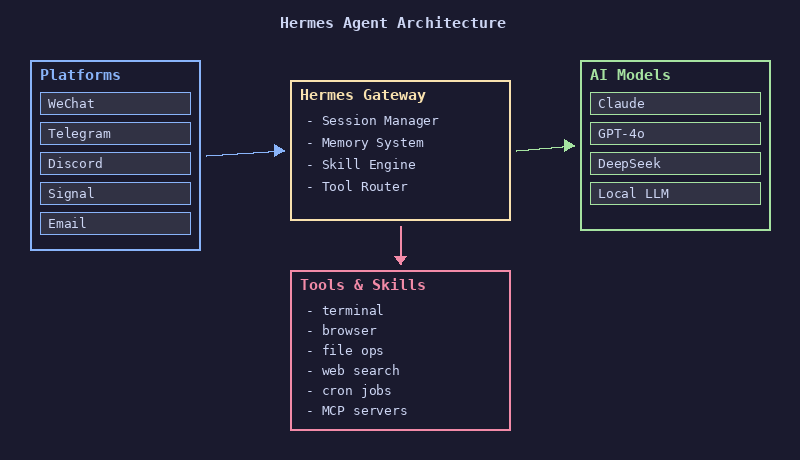
Hermes Agent 是 Nous Research 开源的 AI Agent 框架。它能:
- 连接 20+ 大模型提供商(OpenRouter、Anthropic、OpenAI、DeepSeek、Google、本地模型等)
- 接入 10+ 聊天平台(Telegram、Discord、微信、Signal、Matrix 等)
- 跨会话记忆 —— 它记得你是谁、你的偏好、你的环境
- 自我进化 —— 通过 Skill 机制从经验中学习,越用越顺手
- 定时任务、子代理、浏览器自动化、MCP 工具一应俱全
简单说:你的专属 AI 助手,住在你自己的机器上,通过你最喜欢的聊天软件跟你对话。
二、Windows 安装(WSL2)
Hermes 原生支持 Linux/macOS/WSL。Windows 用户通过 WSL2 获得最佳体验。
2.1 前提条件
- Windows 10/11
- 已安装 WSL2(管理员 PowerShell 运行
wsl --install) - 已安装 Ubuntu(
wsl --install -d Ubuntu)
2.2 安装步骤
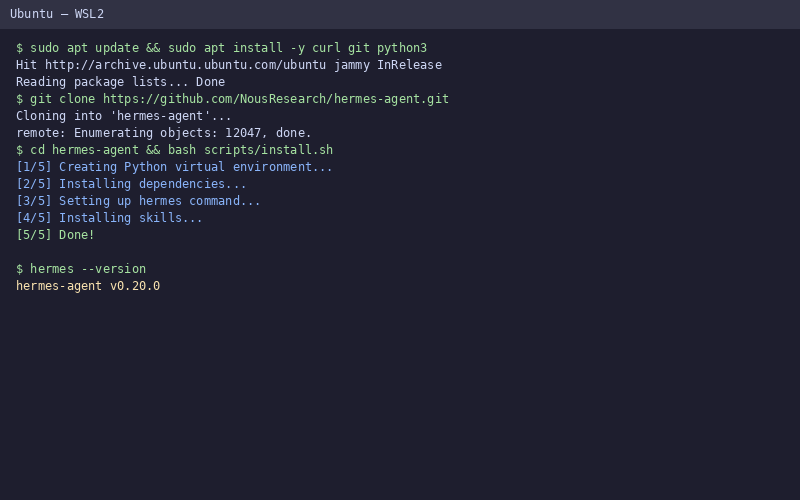
打开 WSL2 Ubuntu 终端,依次执行:
1 | # 1. 安装基础依赖 |
安装脚本会自动:
- 创建 Python 虚拟环境
- 安装所有依赖
- 将
hermes命令加入 PATH
2.3 验证安装
1 | hermes --version |
看到版本号就说明安装成功。
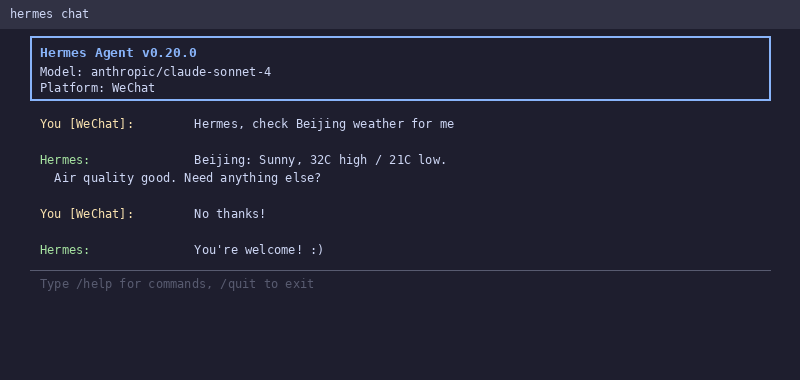
2.4 启动交互式聊天
1 | hermes |
你会看到一个命令行聊天界面,可以直接开始对话。
按 Ctrl+C 退出。
三、配置自己的模型
Hermes 需要一个大模型后端才能工作。你可以选择云端 API 或本地模型。
3.1 方案一:云端 API(推荐新手)
获取 API Key
以下是常用提供商,注册并获取 API Key:
| 提供商 | 免费额度 | 注册链接 |
|---|---|---|
| OpenRouter | 注册送额度 | openrouter.ai/keys |
| DeepSeek | 注册送 1000 万 token | platform.deepseek.com |
| Anthropic | 注册送额度 | console.anthropic.com |
| OpenAI | 注册送额度 | platform.openai.com |
推荐新手用 OpenRouter —— 一个 Key 访问多家模型,切换方便。
配置 API Key
1 | # 打开配置文件 |
添加:
1 | # 以 OpenRouter 为例 |
保存退出(Ctrl+O → Enter → Ctrl+X)。
选择模型
1 | hermes model |
交互式选择界面会列出所有可用模型。也可以用命令直接设置:
1 | # 用 Claude |
测试
1 | hermes chat -q "你好,请用一句话介绍你自己" |
收到回复 = 模型配置成功。
3.2 方案二:本地模型(进阶,隐私优先)
适合有较强显卡(至少 8GB 显存)的用户。
安装 Ollama
1 | curl -fsSL https://ollama.com/install.sh | sh |
下载模型
1 | ollama pull llama3.2 # Meta Llama 3.2 |
配置 Hermes 连接 Ollama
1 | hermes config set model.default llama3.2 |
Ollama 默认端口 11434,Hermes 通过 OpenAI 兼容接口连接。
3.3 多模型自动切换
Hermes 支持配置主模型 + 备用模型:
1 | # ~/.hermes/config.yaml |
主模型正常时走主模型,挂了会自动切换备用模型。
四、配置微信网关
这是最精彩的部分 —— 让 Hermes 通过微信跟你对话。
4.1 原理
1 | 你发微信 → 微信服务器 → Hermes Gateway → AI 模型 → 回复 → 微信 → 你 |
Hermes 通过微信 Web 协议接入,需要一个微信账号作为”助手”。
⚠️ 风险提示:使用个人微信号接入存在封号风险。建议使用备用微信号。Hermes 官方推荐用企业微信或微信公众号。
4.2 配置步骤
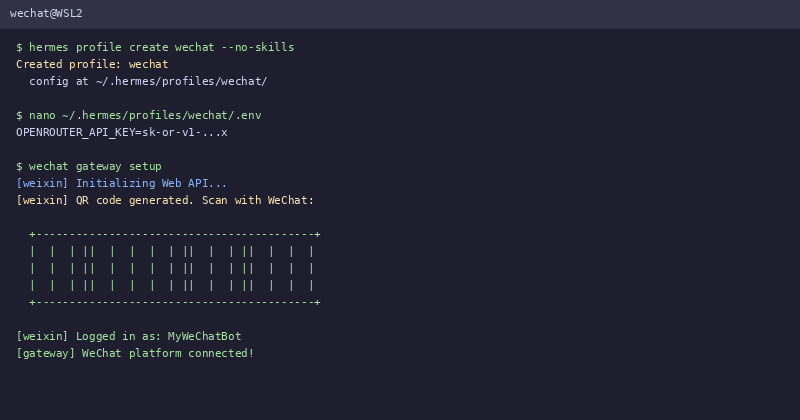
第一步:创建 Profile(隔离环境)
1 | hermes profile create wechat --no-skills --description "微信助手" |
这会创建独立的配置目录 ~/.hermes/profiles/wechat/。
第二步:在新 Profile 里配置模型
1 | nano ~/.hermes/profiles/wechat/config.yaml |
写入:
1 | model: |
第三步:设置环境变量
在 ~/.hermes/profiles/wechat/ 下创建 .env:
1 | OPENROUTER_API_KEY=sk-or-v1-xxxxx |
第四步:启动网关
1 | wechat gateway setup # 交互式引导,按提示扫码登录微信 |
启动后终端会显示二维码,用微信助手号扫码登录。
第五步:验证
在微信上给你的助手号发一条消息,看看能不能收到回复。
4.3 常用网关命令
1 | # 查看状态 |
4.4 多账号配置(进阶)
Hermes 支持多 Profile 并行运行,每个 Profile 绑定不同微信号:
1 | # 主账号 |
两个微信号互不干扰,各自有独立的记忆和配置。
五、更多平台接入
除了微信,Hermes 还支持:
| 平台 | 配置难度 | 说明 |
|---|---|---|
| Telegram | ⭐ 简单 | BotFather 创建 Bot,一行命令搞定 |
| Discord | ⭐ 简单 | 创建 Bot,开启 Message Content Intent |
| Signal | ⭐⭐ 中等 | 需要 Signal 桌面端 |
| Slack | ⭐⭐ 中等 | 创建 Slack App,订阅事件 |
| 邮件 | ⭐ 简单 | IMAP/SMTP 配置 |
Telegram 配置示例:
1 | # 1. 从 @BotFather 获取 Token |
六、进阶玩法
6.1 定时任务
1 | # 每天早上 9 点推送天气 |
6.2 Skill 机制
Hermes 的 Skill 是它最强大的特性 —— 可复用的操作手册。
1 | # 搜索社区共享的 Skill |
6.3 子代理
复杂任务可以派给子代理并行处理:
1 | # Hermes 自动判断何时需要使用子代理 |
七、常见问题
Q: 安装报错 python3: command not found
1 | sudo apt install python3 python3-venv python3-pip |
Q: 微信登录后没反应
- 检查网关日志:
grep "error" ~/.hermes/logs/gateway.log | tail -20 - 确认模型 API Key 正确
- 重启网关:
hermes gateway restart
Q: 模型返回 “401 Unauthorized”
API Key 过期或错误。在 对应平台 重新生成。
Q: 切换模型后没生效
1 | # 需要重启网关使配置生效 |
八、总结
你现在应该有了:
- ✅ 一个运行在 Windows(WSL2)上的 Hermes Agent
- ✅ 配置好的 AI 模型(云端或本地)
- ✅ 接入微信的网关,随时通过微信和 AI 对话
接下来你可以:
- 探索更多 Skill 让 Agent 更聪明
- 接入更多平台(Telegram、Discord)
- 配置定时任务让 Agent 主动帮你干活
- 尝试本地模型保护隐私
Happy building! 🚀
参考链接